
If you haven't already connected your Box account to AppGlu you should do so.
See: Connecting Your Box Account.Why Add Content From Your Box Account
You can use your Box account to store images, videos and documents to display in your AppGlu app.
- App Appearance - use images in a Box folder in the appearance of the app
- Product Categories - use images in a Box folder in the Image area of a product category
- Product Detail - use images in a Box folder in the Image area of a product
- Product Detail - use images, videos, and other documents (PDF, DOC, XLS, PPT) in the Documents area of a product
Once you've added this content from your Box account, you can update the content in Box and it automatically is updated in your app.
How To Add Box Content To Products In Your App
Step 1
Select Products in left side navigation, and add or edit an item.
Step 2
Click the double-document button to open the Media Library

Step 3
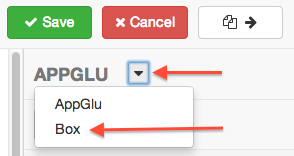
Click the arrow storage source select to switch from AppGlu to Box.
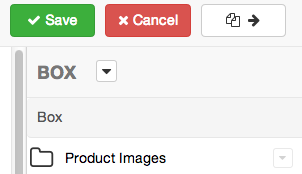
You will see the same files and folders in your Box account in the AppGlu Media Library.
Step 4
Drag files from the Media Library to the Image area or the Documents area.
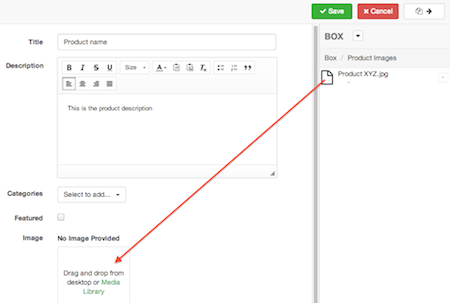
The items in your Box account will be included in your app. They will not be copied to AppGlu, but remain in Box where you can update them with new versions.
Tip: You can also drag/drop an entire folder of items from within your Box folder and AppGlu will display all the contents within the app.
Step 5
Switch to a different location in your Box account by clicking on any of the folder links.
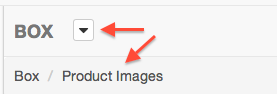
You can also switch the storage source back to AppGlu from Box.
Your app can include files storage in both AppGlu and Box.