
Why Connect Your Box Account
You can use your Box account to store images, videos and documents to display in your AppGlu app.
How To Connect Your Box Account
Step 1
Select Integrations in the left side navigation or click https://apps.appglu.com/integrations.
Step 2
Under the Box integration option, click the green Connect button, and when prompted click Connect again.

Step 3
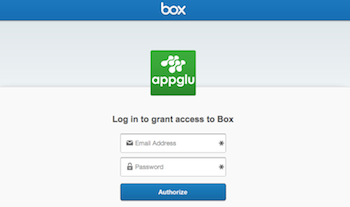
When you see the Box authorization screen enter your Box credentials, click the blue Authorize button, and then click the blue Grant access to Box button to confirm.
Step 4
Choose where you want to store your app’s content in your Box account. There are 2 options.
- Select Existing Folder if you want to use content in a previously created folder in your Box account.
- Create New Folder if you want to create a new empty folder in your Box account.

Tip: Select Existing Folder is your best option if you are using existing content already stored in Box.
Step 5
If you choose Select Existing Folder, you may be prompted to enter your Box credentials again.
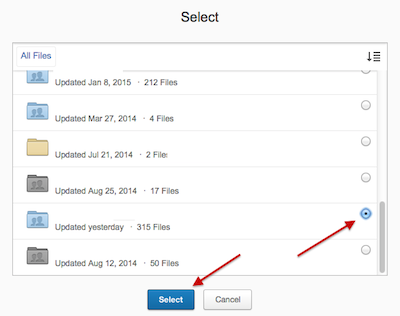
You will then be prompted to choose the folder.
Scroll through the list, select a row by clicking the radio button along the right side, and click the blue Select button.
You have successfully connected your Box account to AppGlu.
You can now use this content in your AppGlu app.
See: Adding Content From Your Box Account To Your App